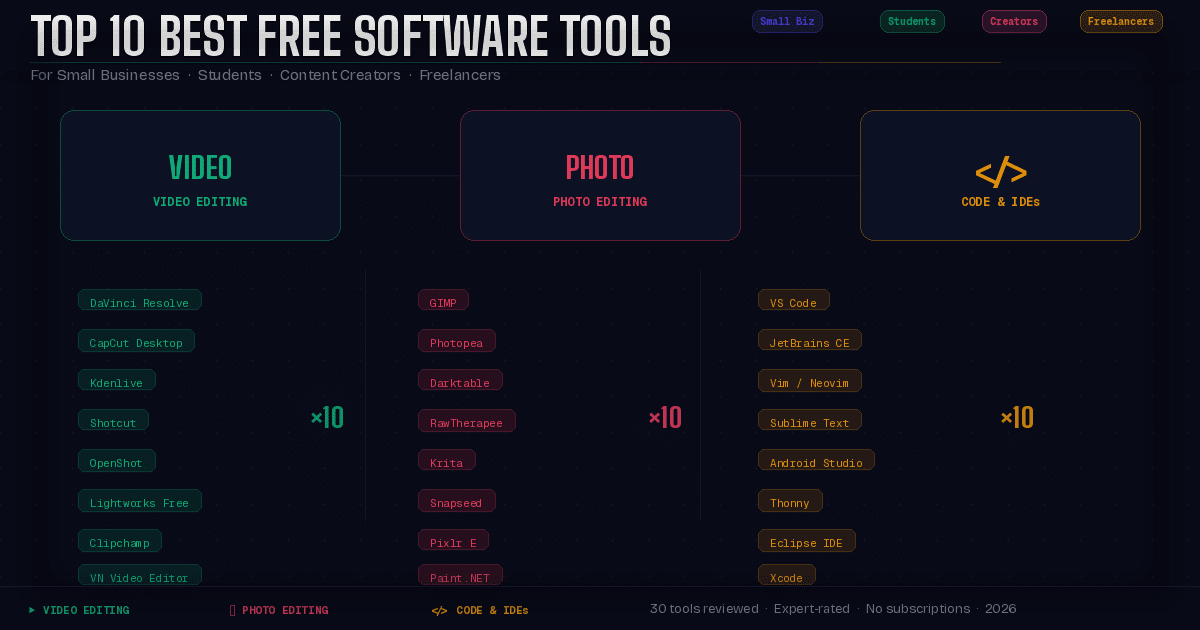
Top 10 Best Free Software Tools for Small Businesses, Students, Content Creators, and Freelancers in 2026
Quick Answer: The best free software tools in 2026 cover video editing, photo editing, and code editing without costing a cent. Whether you run a small business, study full-time, create content for YouTube, or freelance across disciplines, this guide ranks the top 10 picks in each category based on features, reliability, learning curve, and real-world usability.Paid software subscriptions add up fast. A video editor here, a photo suite there, a code environment on top — and suddenly a solo freelancer or bootstrapped small business is spending hundreds of dollars a year just to do their job. The good news is that the free software ecosystem in 2026 is genuinely impressive. These are not stripped-down demos or crippled trials. Many of them are industry-grade tools used by professionals at companies you would recognize.
This guide covers the top 10 free tools across three essential software categories: video editing, photo editing, and code editors and IDEs. For each tool, you will find who it is best suited for, what makes it stand out, where its limits are, and whether it holds up under real professional use. No affiliate rankings. No sponsored placements. Just an honest, expert assessment of what is actually worth your time.
Part 1: Top 10 Best Free Video Editing Software in 2026
Video is no longer optional for businesses, creators, or anyone building a professional presence. But professional video editing software has historically sat behind steep paywalls. That has changed. These ten tools cover everything from quick social clips to broadcast-quality production, all without a subscription fee.
1. DaVinci Resolve — Best Overall Free Video Editor
Best for: Content creators, freelancers, small businesses producing high-quality video content.
DaVinci Resolve is the single most powerful free video editing software available today, and calling it free almost undersells the point. Blackmagic Design offers the full professional version at no cost. The paid Studio version adds a handful of AI-powered features and noise reduction, but the free version covers color grading, multi-camera editing, audio post-production via Fairlight, visual effects via Fusion, and a full collaborative workflow engine that competing paid tools charge thousands for.
Hollywood colorists use DaVinci Resolve on major studio productions. YouTubers with multi-million subscriber counts use it. Freelance video editors bill clients at professional rates using it. The free tier is not a marketing hook — it is a complete professional tool that Blackmagic offers to grow adoption of its hardware ecosystem.
What it does exceptionally well: Color grading is class-leading, period. No other tool at any price point touches DaVinci Resolve's color science. The node-based color workflow feels complex at first but becomes intuitive quickly and produces results that are simply not achievable in simpler editors.
Limitations: The learning curve is real. New editors should expect to spend several weeks becoming comfortable with the interface. Hardware requirements are also higher than simpler tools — a dedicated GPU makes a meaningful difference. On older machines, rendering and playback can be sluggish with 4K footage.
Platform: Windows, macOS, Linux.
2. Kdenlive — Best Free Video Editor for Linux and Open Source Advocates
Best for: Students, freelancers, and small business owners who prefer open-source tools or work primarily on Linux.
Kdenlive is a mature, actively maintained open-source video editor built on the MLT Framework. It handles multi-track editing, supports a wide range of codecs, includes a solid library of transitions and effects, and exports to virtually every format you might need. It is not as visually polished as commercial tools, but its feature set is genuinely comprehensive.
For students learning video production on a limited budget, Kdenlive hits a sweet spot: enough power to learn real editing concepts without the financial barrier of commercial software. For small businesses producing internal training videos, event recaps, or product demonstrations, it handles the job reliably.
What it does exceptionally well: Proxy editing makes working with high-resolution footage on modest hardware genuinely practical. The keyframe animation system is flexible enough for motion graphics work. Regular updates keep it compatible with modern codecs and export formats.
Limitations: Stability has historically been an issue with very complex projects, though this has improved substantially in recent versions. The effects library, while functional, is less polished than commercial alternatives.
Platform: Windows, macOS, Linux.
3. CapCut Desktop — Best Free Video Editor for Content Creators and Social Media
Best for: Content creators, YouTubers, and social media managers producing short-form and long-form content for digital platforms.
CapCut has become one of the fastest-growing video editing platforms in the world, and the desktop version justifies that growth. It combines a beginner-friendly interface with a surprisingly capable feature set: auto-captions with high accuracy, AI-powered background removal, a large library of templates optimized for different platform aspect ratios, beat-synced editing, and one-click color enhancement.
For content creators whose primary output is YouTube, TikTok, Instagram Reels, or similar platforms, CapCut's template library and platform-native export presets remove a significant amount of friction from the production workflow. The auto-caption feature alone saves hours of manual subtitle work per week.
What it does exceptionally well: Speed. CapCut is designed for fast output, and it delivers. The template-to-export pipeline is faster than any other tool in this list for creators who need high volume with consistent quality.
Limitations: Less suitable for narrative long-form editing or broadcast production. The free tier includes CapCut watermarks on some assets, which requires attention during export. Some AI features are credit-limited on the free plan.
Platform: Windows, macOS, iOS, Android.
4. Shotcut — Best Free Video Editor for Simplicity and Format Support
Best for: Students, beginners, and freelancers who need broad format support without complexity.
Shotcut's defining strength is its codec and format support. Built on FFmpeg, it can open and edit virtually any video or audio file you throw at it without conversion. For freelancers working with clients who deliver footage in inconsistent formats, this is genuinely valuable. The interface is straightforward, the timeline editor is competent, and the tool is completely free with no watermarks, no feature locks, and no paid upgrade path.
What it does exceptionally well: Format compatibility is unmatched. Native support for 4K, 360-degree video, and virtually every codec imaginable. Hardware-accelerated decoding keeps playback smooth even on modest hardware.
Limitations: The interface has a steeper initial learning curve than its apparent simplicity suggests. Advanced color grading and motion graphics capabilities are limited compared to DaVinci Resolve.
Platform: Windows, macOS, Linux.
5. OpenShot — Best Free Video Editor for Absolute Beginners
Best for: Students and small business owners who are new to video editing and need a low-friction starting point.
OpenShot prioritizes accessibility above all else. The drag-and-drop timeline, clean interface, and minimal settings make it the most approachable editor on this list. For a small business owner who needs to produce a quick product walkthrough or an introduction video for a client presentation, OpenShot gets the job done without requiring any prior video editing knowledge.
What it does exceptionally well: The 3D animated titles feature is surprisingly capable for a free tool and adds a level of visual polish to otherwise simple projects. The animation framework handles basic motion work cleanly.
Limitations: Performance issues with longer timelines and complex projects are a known limitation. Not recommended for professional client-facing work where rendering performance and precision are critical.
Platform: Windows, macOS, Linux.
6. Clipchamp — Best Free Video Editor Built Into Windows
Best for: Small businesses and freelancers already on Windows 11 who need a quick, browser-based option.
Microsoft's Clipchamp ships with Windows 11 and runs in the browser, making it the most accessible option on this list in terms of setup friction. It handles basic editing tasks, includes a growing asset library, supports 1080p export on the free tier, and integrates cleanly with Microsoft 365 for businesses already in that ecosystem.
What it does exceptionally well: Zero setup. For someone who needs to edit a video right now without installing anything, Clipchamp is the fastest path from raw footage to finished output.
Limitations: The feature set is genuinely limited compared to other tools on this list. It is best treated as a quick-edit tool rather than a production environment for complex projects.
Platform: Windows (built-in), Web browser.
7. Olive Video Editor — Best Free Video Editor for Node-Based Workflow
Best for: Intermediate to advanced users, particularly freelancers with a motion graphics background.
Olive is an open-source editor built around a node-based compositing system similar to DaVinci Resolve's Fusion module. It is still in active development and not yet recommended for mission-critical production work, but for freelancers who want a non-linear, node-based workflow in an entirely open-source environment, it represents the most promising direction in this space.
What it does exceptionally well: The node graph compositing approach allows for complex effects and color work that is difficult or impossible to achieve in timeline-only editors.
Limitations: Still in beta development. Some features are incomplete, and stability on long-form projects needs improvement. Not recommended as a primary production tool until version 1.0 releases.
Platform: Windows, macOS, Linux.
8. Lightworks Free — Best Free Video Editor with Broadcast Heritage
Best for: Freelancers and content creators who want professional broadcast-grade features with a proven track record.
Lightworks has been used on major Hollywood productions including Pulp Fiction, The Wolf of Wall Street, and Braveheart. The free version limits export to H.264 up to 720p for YouTube and Vimeo and omits some advanced features, but the core editing engine is the same professional tool used in broadcast environments. For freelancers building their skills or producing content for online platforms where 720p is acceptable, it is a credible professional option.
What it does exceptionally well: Precision editing tools, a robust multicam workflow, and a real-time effects engine that performs reliably on professional hardware.
Limitations: The free tier's 720p export cap is a meaningful restriction for modern production standards. Full 1080p and 4K export requires the paid Create plan.
Platform: Windows, macOS, Linux.
9. VN Video Editor — Best Free Mobile-First Editor for Creators on the Go
Best for: Content creators and freelancers who edit primarily on mobile devices.
VN Video Editor has quietly become one of the most capable free mobile video editors available. It supports multi-track editing on mobile, includes keyframe animation, offers precise audio control, and exports without watermarks on the free tier. For creators who shoot and edit on their phone or tablet, VN bridges the gap between mobile convenience and desktop-quality output.
What it does exceptionally well: The keyframe animation system on mobile is more capable than most desktop-equivalent tools. Audio ducking and mixing tools are notably advanced for a free mobile application.
Limitations: Mobile constraints apply — complex projects with many tracks can slow down on older devices. Not a replacement for desktop editing on large-scale productions.
Platform: iOS, Android, macOS.
10. Canva Video Editor — Best Free Video Editor for Non-Technical Users and Teams
Best for: Small business teams, marketers, and content creators who prioritize visual polish over editing depth.
Canva's video editor is not a traditional timeline editor, and it is not trying to be. It is a design-first video creation tool that lets non-technical users produce visually consistent, brand-aligned video content using templates, brand kits, and an extensive asset library. For small business marketing teams and social media managers who need branded video content at scale, Canva is the most efficient path to consistent output.
What it does exceptionally well: Brand consistency. The brand kit feature, which lets you store brand colors, fonts, and logos, ensures that every piece of video content looks like it belongs to the same company. Collaboration features make it practical for teams.
Limitations: Not suitable for complex narrative editing, color grading, or any work requiring frame-level precision. The free tier has asset and storage limitations.
Platform: Web, iOS, Android.
Part 2: Top 10 Best Free Photo Editing Software in 2026
Photo editing software sits at the center of professional workflows for designers, photographers, content creators, and marketers. Adobe Photoshop and Lightroom dominate the conversation, but their subscription costs exclude a large portion of the market. These ten free alternatives cover everything from basic corrections to professional retouching and graphic design.
1. GIMP — Best Free Photo Editor for Advanced Users
Best for: Freelancers, small businesses, and students who need Photoshop-level capability without the subscription cost.
GIMP (GNU Image Manipulation Program) is the gold standard of free photo editing software and has been for over two decades. It supports layers, masks, channels, curves, levels, and virtually every advanced editing operation you would expect from a professional tool. The plugin ecosystem extends its capabilities significantly, and the Script-Fu and Python-Fu scripting interfaces enable automation that professional workflows depend on.
GIMP is not Photoshop. The interface is different, the keyboard shortcuts are different, and the workflow takes adjustment for anyone coming from Adobe products. But its capabilities are genuinely comparable for most professional use cases, and the price difference of several hundred dollars per year is difficult to argue against.
What it does exceptionally well: Non-destructive editing via the Script-Fu pipeline, advanced selection tools including the intelligent scissors and foreground select, and a level of customizability that few tools at any price point match.
Limitations: The interface design has been criticized for decades and remains a barrier for new users. CMYK color mode support is limited without plugins, which matters for print production workflows. No built-in non-destructive adjustment layers in the traditional sense.
Platform: Windows, macOS, Linux.
2. Photopea — Best Free Browser-Based Photo Editor
Best for: Freelancers, content creators, and students who need Photoshop-compatible editing from any device without installation.
Photopea is one of the most remarkable pieces of free software available. It runs entirely in the browser, opens native Photoshop PSD files, Illustrator AI files, Sketch files, and XD files, and supports layers, masks, smart objects, blend modes, and most of the tools you would use in Photoshop daily. For freelancers who occasionally need to work from a client's machine or a device without their normal software installed, Photopea is an invaluable backup option that has become many professionals' primary tool.
What it does exceptionally well: PSD compatibility is near-perfect. Opening a complex layered Photoshop file in Photopea and finding everything intact — layer groups, adjustment layers, smart objects, layer effects — is genuinely impressive for a free browser-based tool.
Limitations: Ads on the free tier can be disruptive. Performance on very complex documents with many layers can lag in browser environments. An ad-free plan is available at a low annual cost.
Platform: Web browser (all platforms).
3. Darktable — Best Free Photo Editor for Photographers and RAW Processing
Best for: Photographers, content creators, and freelancers who shoot in RAW format and need Lightroom-equivalent processing.
Darktable is the open-source answer to Adobe Lightroom. It is a non-destructive RAW processor and digital asset manager that handles color science, exposure, lens correction, noise reduction, and tonal adjustment with a level of precision that professional photographers require. The parametric masking system is particularly powerful, allowing complex, condition-based masking that Lightroom's tools approximate but do not always match.
What it does exceptionally well: The scene-referred color processing workflow, which Darktable adopted early and champions strongly, produces more technically accurate color rendering than the older display-referred approaches used by some competing tools. The module-based editing pipeline is logical and extensible.
Limitations: The learning curve is steep. Darktable requires genuine investment to understand before it becomes productive. The interface is dense and not immediately intuitive. For photographers migrating from Lightroom, the workflow adjustment is significant.
Platform: Windows, macOS, Linux.
4. RawTherapee — Best Free RAW Processor for Technical Photographers
Best for: Photography students, professional photographers, and technically-minded freelancers who process high volumes of RAW files.
RawTherapee is one of the most technically capable RAW processors available at any price. Its demosaicing options, noise reduction algorithms, and tone mapping controls go deeper than Lightroom in several areas. For photographers who care about the technical quality of their output at a pixel level, RawTherapee provides tools that justify its use even alongside paid alternatives.
What it does exceptionally well: Multiple demosaicing algorithms give photographers fine-grained control over how sensor data is interpreted. The CIECAM02 color appearance model integration handles complex lighting conditions with greater accuracy than simpler tools.
Limitations: This is a tool for technical users. The interface prioritizes capability over accessibility, and casual users will find it overwhelming. No asset management features — it is a processor only, not a library manager.
Platform: Windows, macOS, Linux.
5. Canva Free — Best Free Photo Editor for Non-Designers and Small Business Marketing
Best for: Small business owners, content creators, and anyone producing marketing visuals without a design background.
Canva's photo editing capabilities extend well beyond templates. The free tier includes background removal (limited uses), one-click photo enhancement, a growing suite of filters and adjustments, and integration with a massive stock photo and illustration library. For small business owners who need professional-looking social media graphics, presentation images, and marketing materials without hiring a designer, Canva is the single most productive tool available.
What it does exceptionally well: Speed and consistency. The combination of templates, brand kits, and one-click enhancement tools lets non-designers produce visually consistent work at a pace that dedicated design tools cannot match for this use case.
Limitations: Not suitable for deep photo editing, retouching, or precise manipulation. The free tier's background removal credit limit can be restrictive for high-volume users.
Platform: Web, iOS, Android.
6. Krita — Best Free Photo and Digital Art Editor for Illustrators
Best for: Freelance illustrators, concept artists, content creators producing digital art, and students studying digital illustration.
Krita is built for digital painting and illustration first, but its photo editing capabilities are solid enough for many professional use cases. The brush engine is among the best available at any price point, the layer system is comprehensive, and the resource management for large brush libraries and textures is thoughtfully designed. For content creators who produce illustrated thumbnails, digital art for products, or branded illustrations, Krita is the tool of choice.
What it does exceptionally well: The brush stabilizer and brush engine customization are genuinely superior to many paid alternatives for illustration workflows. HDR painting support and the wrap-around mode for creating seamless textures add professional-grade capabilities.
Limitations: Not designed as a primary photo editing tool for photography workflows. RAW file support is basic compared to dedicated RAW processors.
Platform: Windows, macOS, Linux, Android.
7. Pixlr E — Best Free Browser Photo Editor for Quick Professional Edits
Best for: Content creators, freelancers, and small business owners who need fast, professional edits from any browser.
Pixlr E is a browser-based editor that positions itself closer to Photoshop than Canva in terms of editing depth. It supports layers, masks, selection tools, healing brushes, and a solid range of adjustments and filters. The interface is clean and approachable without sacrificing meaningful capability. For professionals who occasionally need to edit from a device without their primary tools, Pixlr E is a credible option.
What it does exceptionally well: The balance between accessibility and capability is well-struck. New users can produce professional results quickly, while experienced editors have enough depth to handle moderately complex retouching and compositing work.
Limitations: AI-powered features are credit-limited on the free tier. Performance can degrade with very large files. Not suitable as a replacement for desktop software on high-volume production workflows.
Platform: Web browser (all platforms).
8. Snapseed — Best Free Mobile Photo Editor for Photographers on Mobile
Best for: Content creators, photographers, and small business owners who edit photos primarily on mobile devices.
Google's Snapseed remains the benchmark for mobile photo editing. Its selective adjustment tool — which lets you paint exposure, saturation, and contrast adjustments onto specific areas of an image — is more intuitive and precise than comparable tools in most desktop editors. The non-destructive stack system means all edits are reversible, and the QR code style sharing feature lets you apply the same editing recipe across multiple images efficiently.
What it does exceptionally well: The Healing tool and Portrait features handle common retouching tasks with impressive accuracy for a mobile tool. RAW file support means photographers do not need to convert files before editing on mobile.
Limitations: Mobile-only. No desktop version exists. Not suitable for complex compositing or layered design work.
Platform: iOS, Android.
9. Fotor Free — Best Free Photo Editor for Quick Enhancements and Collages
Best for: Small businesses, content creators, and students who need polished outputs with minimal editing effort.
Fotor sits between Canva and Pixlr in terms of depth. It handles basic to intermediate photo editing, offers a strong collage tool, includes AI-powered background removal and portrait retouching, and provides a template library for social media content. For small business social media managers who need consistent, visually polished outputs with modest editing requirements, Fotor delivers that efficiently.
What it does exceptionally well: The one-click enhancement engine produces reliably good results on portrait and product photography. The collage builder is among the most flexible in the free tier of any tool.
Limitations: AI features are usage-limited on the free plan. Not suitable for professional retouching or precision editing work.
Platform: Web, Windows, iOS, Android.
10. Paint.NET — Best Free Photo Editor for Windows Users Who Want Simplicity
Best for: Students, small business owners, and Windows users who need capable basic photo editing without complexity.
Paint.NET occupies a well-defined niche: more capable than Microsoft Paint, significantly simpler than GIMP, and exclusively focused on Windows. Its layer support, plugin ecosystem, and clean interface make it a strong choice for users who need basic retouching, color correction, and compositing without investing time in a complex tool. The plugin library — which includes advanced noise reduction, distortion effects, and additional filters — extends its capabilities meaningfully.
What it does exceptionally well: Performance is excellent on Windows hardware. The plugin ecosystem adds capabilities that rival some paid tools for specific use cases. The interface is genuinely one of the cleanest and most learnable in this category.
Limitations: Windows-only. Not suitable for professional production workflows that require advanced masking, non-destructive adjustment layers, or complex compositing.
Platform: Windows only.
Part 3: Top 10 Best Free Code Editors and IDEs in 2026
For developers, students learning to code, and freelancers building software or websites, the code editor is the tool you spend more time in than any other. The free options in this category are exceptional, with several of the most widely used professional tools in the world available at no cost.
1. Visual Studio Code — Best Free Code Editor Overall
Best for: Everyone. Students, freelancers, small business developers, and content creators who code.
Visual Studio Code is the most widely used code editor in the world for a reason. Microsoft built something that manages to be simultaneously approachable for beginners and capable enough for professional engineers at the largest companies on the planet. The extension marketplace contains over 40,000 extensions covering every language, framework, linter, debugger, AI coding assistant, and workflow tool you could need. It is free, open-source, and available on every major platform.
The integrated terminal, Git source control, debugging tools, and IntelliSense code completion are all built-in and require no configuration to start working. For students, this means a professional-grade environment from day one. For freelancers, it means a single editor that handles JavaScript, Python, PHP, HTML, CSS, TypeScript, and any other language a client project might require.
What it does exceptionally well: The extension ecosystem is unmatched. Whatever you need VS Code to do, there is almost certainly an extension that does it. Remote development via SSH, containers, and GitHub Codespaces makes it one of the few editors genuinely suitable for modern cloud-native development workflows.
Limitations: Resource usage is higher than lighter editors like Sublime Text or Vim. On very low-spec hardware, performance can be a concern with many extensions loaded. Privacy-conscious users sometimes prefer VSCodium, the open-source build without Microsoft's telemetry.
Platform: Windows, macOS, Linux, Web (github.dev).
2. JetBrains IDEs (Community Editions) — Best Free IDEs for Language-Specific Professional Development
Best for: Freelancers and small business developers who work primarily in Java, Python, Kotlin, or web technologies.
JetBrains produces arguably the best language-specific IDEs in the industry, and several of them offer genuinely capable free Community Editions. IntelliJ IDEA Community covers Java and Kotlin development. PyCharm Community covers Python. The community editions omit some enterprise features but include the core intelligent code assistance, refactoring tools, debuggers, and version control integration that make JetBrains IDEs the professional preference for their respective languages.
For a freelance Python developer or a small business running Java backend services, the community editions are not compromised tools. They are professional environments that happen to be free.
What it does exceptionally well: Deep language understanding. JetBrains IDEs parse your entire codebase and produce contextually accurate code completion, refactoring suggestions, and error detection that shallow pattern-matching tools cannot replicate.
Limitations: Community editions omit web framework support (Django, FastAPI, Spring), database tools, and remote development features available in the paid Ultimate/Professional versions. Resource usage is higher than VS Code.
Platform: Windows, macOS, Linux.
3. Vim / Neovim — Best Free Code Editor for Advanced Users and Terminal Workflows
Best for: Experienced developers, freelancers working heavily in server environments, and developers who prioritize speed and efficiency.
Vim is one of the oldest and most enduring tools in software development for a reason. Its modal editing system produces editing speeds and efficiency levels that modern GUI editors struggle to match for developers who invest in learning it. Neovim, the modern fork, adds Lua-based configuration, built-in LSP support, and a plugin ecosystem that brings contemporary IDE features into the terminal environment. For freelancers doing significant server-side work, Vim or Neovim is invaluable as either a primary editor or an essential secondary tool.
What it does exceptionally well: Performance is unmatched. Vim opens and navigates files of any size instantly. SSH-based remote editing is seamless. The keyboard-driven workflow eliminates context-switching between mouse and keyboard entirely.
Limitations: The learning curve is steep and front-loaded. New users should expect weeks before feeling productive, and months before the efficiency gains become apparent. Not recommended as a first code editor for beginners.
Platform: Windows, macOS, Linux (everywhere).
4. Sublime Text — Best Free Code Editor for Speed and Lightweight Performance
Best for: Freelancers and developers on modest hardware who need a fast, lightweight editor without configuration overhead.
Sublime Text is technically free to use indefinitely — the license purchase removes a periodic purchase reminder but is not required. Its performance is exceptional. It opens large files instantly, handles multiple cursors with precision, and runs on hardware that would strain VS Code. The "Goto Anything" navigation, multiple cursor editing, and distraction-free mode are features that influenced an entire generation of text editors.
What it does exceptionally well: Raw editing speed and responsiveness. Sublime Text is the right choice when you need a code editor that stays out of your way and simply performs, with no configuration required.
Limitations: The plugin ecosystem, while solid, is significantly smaller than VS Code's. Built-in language intelligence is limited compared to full IDE experiences. Less actively developed than VS Code in terms of feature additions.
Platform: Windows, macOS, Linux.
5. Eclipse IDE — Best Free IDE for Java and Enterprise Development
Best for: Students learning Java, freelancers working on Java enterprise projects, and small businesses running Java-based systems.
Eclipse has been the primary Java IDE for enterprise development for over two decades. It is fully free, open-source, and supported by a foundation that includes IBM, Oracle, and Red Hat. The plugin ecosystem (via the Eclipse Marketplace) is extensive, and its Java development tools remain a professional-grade standard. For students in Java-focused computer science programs, Eclipse is often the tool their curriculum is built around.
What it does exceptionally well: Java refactoring tools are comprehensive and reliable. The workspace management system handles large multi-module Maven and Gradle projects well. Built-in UML visualization and debugging tools add genuine value for enterprise workflows.
Limitations: The interface feels dated compared to modern alternatives. Performance and startup time are notably worse than JetBrains or VS Code. Initial configuration for new project types can be cumbersome.
Platform: Windows, macOS, Linux.
6. Android Studio — Best Free IDE for Mobile App Development
Best for: Freelancers developing Android applications, students learning mobile development, and small businesses building Android apps.
Android Studio is the official IDE for Android development and is provided free by Google. Built on IntelliJ IDEA, it includes the full Android SDK, an emulator, layout editor, profiling tools, and the most complete Android development environment available. For anyone building Android applications, it is the only credible choice — not because alternatives do not exist, but because the first-party tooling depth is simply unmatched.
What it does exceptionally well: The layout editor with live preview, the device emulator, and the profiling tools for memory and CPU analysis are professional-grade tools that would cost significantly in a paid alternative ecosystem.
Limitations: High RAM requirements. Running the emulator alongside the IDE comfortably requires 16GB of RAM. Startup times are long. Not suitable for anything outside Android development.
Platform: Windows, macOS, Linux, ChromeOS.
7. Xcode — Best Free IDE for iOS and macOS Development
Best for: Freelancers developing Apple platform applications, students learning Swift, and small businesses targeting iOS.
Xcode is Apple's first-party IDE for iOS, macOS, watchOS, tvOS, and visionOS development. It is free, comprehensive, and the only tool that provides the full Apple development ecosystem including the iOS simulator, Instruments profiling suite, Interface Builder, and App Store Connect integration. Swift development is not realistically possible without it.
What it does exceptionally well: The Instruments profiling tool is one of the best performance analysis environments available on any platform. The SwiftUI canvas preview makes UI development significantly faster than traditional iOS development workflows.
Limitations: macOS exclusive. Large download size. Can be slow to update when new iOS versions introduce breaking changes. The learning curve for Xcode's project and workspace management is steeper than other IDEs.
Platform: macOS only.
8. VS Codium — Best Free Open-Source Code Editor for Privacy-Conscious Developers
Best for: Developers, freelancers, and small businesses who want VS Code's capabilities without Microsoft's telemetry and data collection.
VSCodium is a community-maintained binary distribution of VS Code's open-source codebase, compiled without Microsoft's telemetry, tracking, or branding. It is functionally near-identical to VS Code for most development workflows and uses a compatible extension marketplace. For developers and organizations with strict data privacy requirements, VSCodium is the professional choice.
What it does exceptionally well: Everything VS Code does, minus the telemetry. The Open VSX Registry provides access to most of the extensions available in the official marketplace.
Limitations: Some Microsoft-specific extensions (including certain first-party Microsoft tools) are not available via Open VSX. Occasional version lag behind the upstream VS Code release.
Platform: Windows, macOS, Linux.
9. Brackets — Best Free Code Editor for Front-End Web Development
Best for: Students and freelancers focused primarily on HTML, CSS, and JavaScript front-end development.
Brackets was originally built by Adobe and is now maintained by the open-source community. Its defining feature is Live Preview, which renders your HTML and CSS changes in a connected browser instance in real time without requiring a page refresh. For front-end developers who work closely with the visual output of their code, this live connection between editor and browser is a genuinely productive workflow enhancement.
What it does exceptionally well: The Live Preview feature and the inline editor, which lets you edit a CSS rule by clicking an HTML element, create a fluid front-end workflow that reduces context-switching considerably.
Limitations: Active development slowed following Adobe's handoff to the community. Less suitable for back-end or full-stack development workflows. The extension ecosystem is smaller than VS Code's.
Platform: Windows, macOS, Linux.
10. Thonny — Best Free IDE for Python Beginners and Students
Best for: Students learning Python for the first time, educators teaching programming, and absolute beginners who find VS Code overwhelming.
Thonny was designed specifically as a learning environment for Python, and it shows in every design decision. The step-through debugger visualizes exactly what Python is doing at each line of execution, including showing how variable values change in real time. The simple interface removes every piece of complexity that is not immediately relevant to learning. For students taking their first programming course or educators teaching Python to young learners, Thonny is the most pedagogically sound tool in this list.
What it does exceptionally well: The heap visualization, which shows how Python manages memory and object references, is uniquely educational. The pip package management integration makes installing libraries accessible to beginners who have never used a terminal.
Limitations: Not suitable for professional development work beyond the learning phase. The intentional simplicity that makes it great for beginners becomes limiting for intermediate and advanced Python development.
Platform: Windows, macOS, Linux.
Best Picks by Audience Type
If you want the shortest possible answer to "what should I use," here is the expert recommendation broken down by who you are and what you need most.
Small Businesses: For video, start with CapCut for social content and DaVinci Resolve for anything longer or more polished. For photo editing, Canva handles marketing materials and Photopea covers anything requiring precise editing. For code, VS Code is the default choice for any in-house development work.
Students and Beginners: OpenShot or CapCut for your first video projects. GIMP for photo editing if you want to learn seriously, Canva if you want results immediately. Thonny to learn Python, VS Code for everything else once you are past the basics.
Content Creators and YouTubers: DaVinci Resolve if you are willing to invest in learning it. CapCut if you need speed and volume. Snapseed and Canva cover most photo editing needs. VS Code if you ever write scripts, automations, or web content.
Freelancers: DaVinci Resolve for client video work — the quality ceiling justifies the learning investment. Photopea and GIMP together cover the full range of photo editing client work. VS Code with relevant language extensions handles virtually every development client scenario, with JetBrains community editions for language-specific projects that warrant deeper tooling.
Frequently Asked Questions
Are free software tools actually good enough for professional work?
Yes, for most professional use cases. DaVinci Resolve, GIMP, Darktable, and VS Code are used daily by professionals billing at market rates. The free tier of these tools is not a demo — it is the full product. The exceptions are tools where the free version has specific export or feature limitations (Lightworks's 720p cap, for example), which you need to evaluate against your specific requirements.
What is the best free video editing software for YouTube in 2026?
DaVinci Resolve for creators who want the highest quality output and are willing to invest in learning it. CapCut for creators who prioritize speed, volume, and social-native features like auto-captions and platform presets. If you are starting out, CapCut gives you results faster. If you are building a long-term professional channel, DaVinci Resolve's quality ceiling justifies the investment.
Is GIMP a real replacement for Photoshop?
For most use cases, yes. GIMP handles retouching, compositing, graphic design, and photo manipulation at a professional level. The workflow is different from Photoshop, and the CMYK limitations matter for print production work. For screen-based work — web, social media, digital content — GIMP is a credible professional tool that costs nothing.
What free code editor should a beginner start with?
VS Code for general programming. Thonny specifically for learning Python from scratch. Both are free, well-documented, and have large support communities that make finding answers to beginner questions easy. VS Code will carry you from beginner to professional without needing to switch tools.
Can I use these tools commercially for client work?
For the vast majority of tools on this list, yes. DaVinci Resolve, GIMP, Darktable, VS Code, and most others are explicitly licensed for commercial use. Always verify the specific license of any tool before using it for commercial client work, particularly for plugins, assets, or templates included with the tool, which may have separate licensing terms.
What is the best free photo editing software for a small business with no design experience?
Canva, without qualification. For a small business owner with limited design experience who needs professional-looking marketing materials, social content, and branded visuals, Canva is the single most productive tool available. The template library, brand kit, and one-click enhancement tools produce consistently good results without requiring design knowledge.
Are there any hidden costs in free software?
Some tools follow a freemium model where the core product is free but specific features, assets, or usage volumes require paid plans. CapCut limits some AI features on the free tier. Canva restricts premium assets and some AI features. Pixlr limits AI credits. In all cases on this list, the free tier is explicitly identified as such, and paid upgrades are optional rather than required for professional use.
Also read Free certification you need in 2026 on :< a href="https://aitechblogs.netlify.app/post/11-developer-certifications-you-should-earn-this-year">Developer Certifications You Should Earn This Year
This article is part of our Technology series covering tools, platforms, and resources that help professionals, students, and businesses work more effectively. Updated regularly to reflect changes in tool availability, pricing, and feature sets. Related reading: Best Free Project Management Tools for Remote Teams, Free Design Resources for Content Creators, and Open Source Tools Every Developer Should Know.